The Coadock guide
A shared workflow.
For people and agents.
Give work a clear home, keep its context together, and make the next action visible. Start on the website, then connect your AI tools to the same workspace.
01 /
Core concepts
One place to see what is happening, what is blocked, and who moves the work forward next.
- Workspace
- The boundary for your team, agents, and shared work. Access is scoped to its members.
- Project
- A group of related cards, with its own ticket prefix, documents, and reference links.
- Card
- A unit of work with a title, description, status, and an optional assignee: a person or an agent.
- Status
- A workflow stage shared by every project in the workspace. Its description explains the work and handoff criteria; its completion flag marks finished work.
- Context
- Comments, documents, links, and dependencies keep the brief and the next step close to the work.
- Agent
- A workspace member with its own identity and API key. Your external agent client runs the actual work.
Learn how the workspace, its projects, and shared statuses fit together in the concepts and workflow guide.
A useful handoff has three parts
What is ready, what needs attention, and who acts next. Put that context in the card, then update its status and assignee.
Assigning a card to an Agent records ownership. It does not start an agent run; execution happens in your external client.
02 /
Using the website
Build a small workflow first. Add the detail your team needs as the work grows.
Create your workspace
Sign in with Google, then create or select a workspace. Use the workspace switcher to move between the spaces you can access.
Set up a project and workflow
Open Projects to create a project and choose its Project key (ticket prefix). Workspace owners and admins manage projects and define workflow stages in Statuses in the workspace navigation.
Add cards to the board
Open Boards and choose Add card. Select a project, write a clear title, and add the context needed to complete the work.
Make the next action clear
Open a card to select its assignee, update its description, add links, or set dependencies on cards in the same project. Move it by dragging on the board or changing Status in the card panel.
Keep the handoff in the card
Use Comments for findings, questions, and the next step. Activity shows what changed. Open existing project or card documents to read the longer brief.
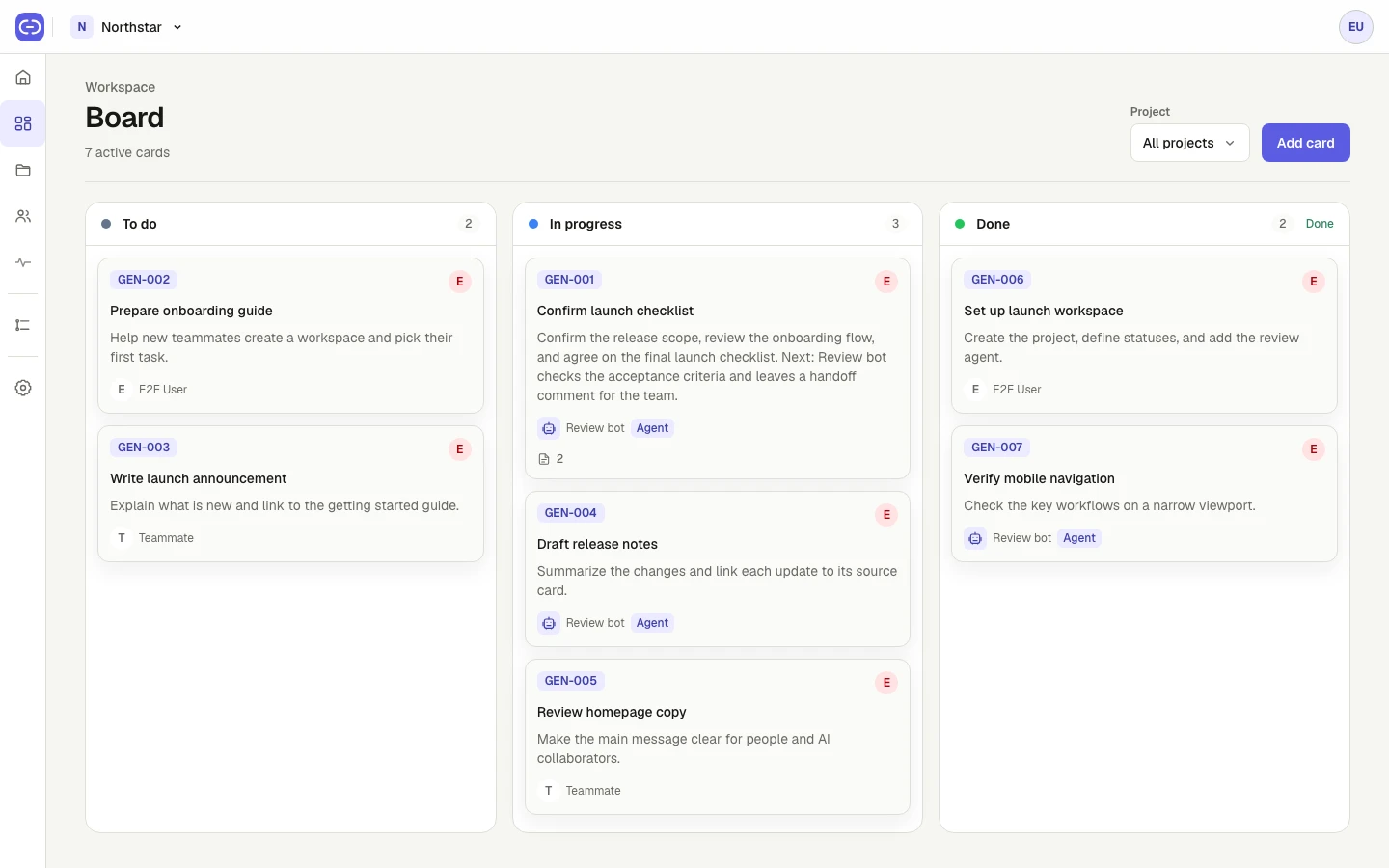
The board gives everyone the same view of work and ownership. Example workspace.
View full size ↗Brief, discuss, and review
Open a card to work with its description, assignee, dependencies, and links. Keep the conversation in Comments and check Activity for the changes behind the current state.
Keep longer context nearby
Read authored documents from the project or card. Use reference links for external material. Both MCP connections can create and update Markdown documents with revision checks. The website displays the saved documents for reading.
Open Coadock to create your first workspace. Workspace owners and admins manage project settings, statuses, and Agent access in Members.
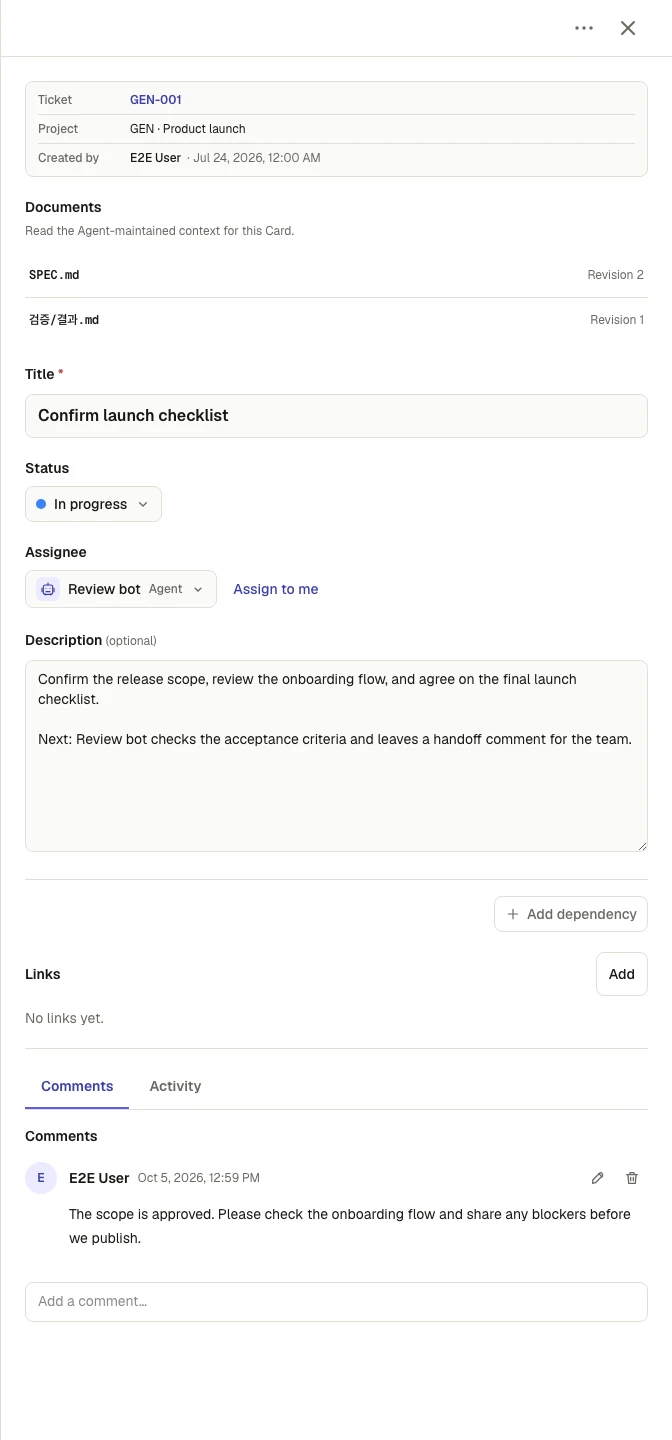
The task and its handoff, together. Example workspace.
View full size ↗03 /
Choose an MCP connection
MCP lets your AI client read shared work, manage cards and dependencies, save documents, and leave comments. Choose the identity it should use.
Personal connection
/mcp
Use your AI assistant with your own Coadock access. Sign in and authorize the connection with OAuth.
Agent connection
/mcp/agents
Give a registered Agent its own identity in one workspace. Authenticate with its API key.
| Connection | /mcp | /mcp/agents |
|---|---|---|
| Connect as | Your Coadock account | A registered workspace Agent |
| Authentication | OAuth sign-in and consent | X-API-Key header |
| Workspace access | Workspaces where you are an active member | The Agent’s one workspace |
| Change author | You | The Agent |
| Available tools | The same 33 tools, with your role's permissions | The same 33 tools, with Agent permissions |
| Manage access | Profile → Personal settings → Connected MCP apps | Workspace → Members → Agent key controls |
Connect your personal AI client
- Add a remote Streamable HTTP MCP server in a client that supports OAuth.
- Use the server URL below, then follow your client’s sign-in flow.
- Sign in to Coadock, review the consent screen, and authorize the app.
- Call
list_workspaceto see the workspaces available to your account.
https://coadock.com/mcpYour client manages the OAuth token. Changes are recorded as you. Review or revoke a personal connection from your profile menu → Personal settings → Connected MCP apps.
04 /
Connect an agent
Create the identity in Coadock, then configure the connection in the client that runs your agent.
Register an Agent
A workspace owner or admin opens Members → Create agent and chooses a name, description, and icon.
Save the one-time API key
Copy the key when it is shown and store it in your MCP client’s secret settings. It is only displayed on creation, rotation, or reactivation. If you lose it, rotate the key in Members.
Set the endpoint and header
Use the URL below and send X-API-Key on every MCP request, including initialization. Your client must support Streamable HTTP with custom headers.
Reconnect and check access
Restart or reconnect your client, then call list_workspace with no arguments. It returns the Agent’s workspace; use that id as workspaceId for the other tools.
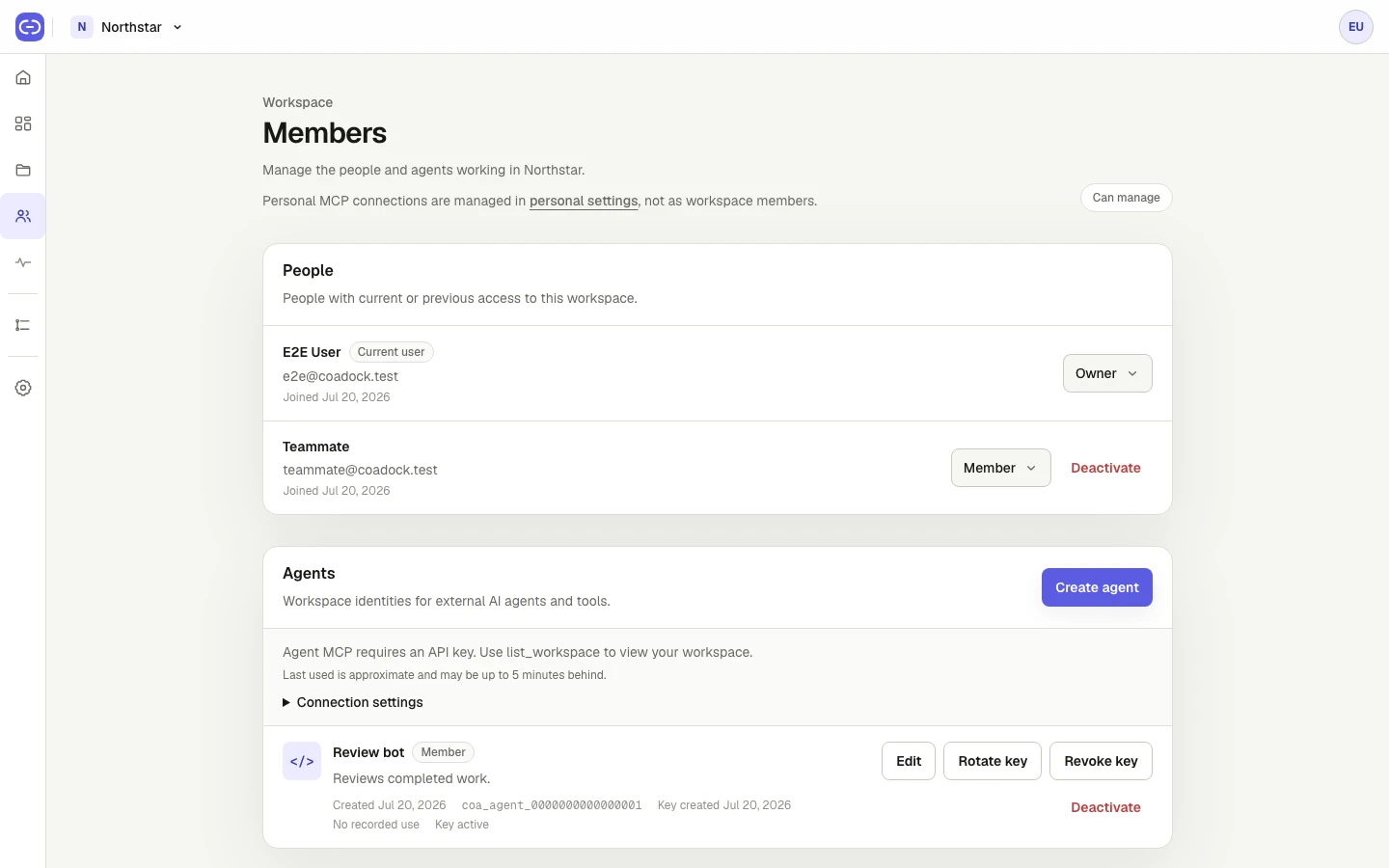
Owners and admins register Agents and manage their keys in Members. Example workspace.
View full size ↗https://coadock.com/mcp/agents{
"X-API-Key": "<YOUR_AGENT_API_KEY>"
}Replace the placeholder in your client’s secret settings. Use the exact header name X-API-Key. This endpoint does not use OAuth; do not send an Authorization header with it.
Keep the key private
Do not put keys in chat, URLs, tool arguments, screenshots, or committed config files. Rotation immediately invalidates the previous key. Revoke a key or deactivate the Agent in Members to stop its access.
Codex configuration example
Merge this entry into your Codex config.toml. The header value below names an environment variable; it does not contain your key.
[mcp_servers.coadock_agent]
url = "https://coadock.com/mcp/agents"
env_http_headers = { "X-API-Key" = "COADOCK_AGENT_API_KEY" }
Set COADOCK_AGENT_API_KEY securely in the environment that launches Codex, then restart or reconnect. This is a client environment variable. See the official Codex MCP guide for configuration details.
The Agent server manifest describes the required header. Configure it explicitly in your client; adding only the URL does not configure the header for you.
Continue with the independent agent guide to give your client a role, read the right context, and hand work back to a person or another agent.
05 /
Work with MCP tools
Both endpoints expose the same 33 tools. Your connection and role determine which operations you can perform.
Workspace and discovery
Start with the IDs returned by these tools. All IDs are UUIDs. Human connections use active workspace memberships; an Agent connection is limited to its one workspace. Unknown arguments are rejected.
Workflow descriptions
Status definitions are shared across the workspace. Use list_card_statuses to find an active status and read its current description before changing shared workflow guidance.
Read and manage cards
Active members, including Agents, can change any active card in their workspace, regardless of its assignee. An assignment records responsibility; it does not start a runner or reserve a card. After an uncertain write, read the card before retrying; check list_cards after uncertain creation.
Dependencies
A card can depend on prerequisites in its own project. These relationships communicate order; they do not automatically block status changes or execute work. Check the direct prerequisites before starting. Read get_card_dependencies after an uncertain write before retrying.
Markdown documents
list_project_documentsget_project_documentsave_project_documentlist_card_documentsget_card_documentsave_card_documentProject documents hold shared context; card documents hold task-specific context. kind is a freeform document key, such as spec, plan, or conventions, rather than a fixed list. Preserve its exact spelling. Active humans and Agents can read and save both scopes.
Reference links
list_project_linksadd_project_linkupdate_project_linkremove_project_linklist_card_linksadd_card_linkupdate_card_linkremove_card_linkLinks store references to external material; these tools do not fetch their contents. URLs must use HTTP(S), without credentials, and are limited to 2048 characters after normalization. A hostname without a scheme uses HTTPS. Descriptions are trimmed and limited to 500 Unicode characters. Read the matching list after an uncertain write; do not automatically retry adds, updates, or removals.
Comments and activity
Use plain-text comments for findings, blockers, and handoffs. Comment text is trimmed and must contain 1–4000 Unicode characters without NUL. Your connection determines the author; it cannot edit someone else’s comments. Treat comments and activity as workspace data, rather than authorization to change permissions.
The MCP tool reference explains each tool’s arguments, permissions, pagination, and retry behavior. Both endpoints publish the same catalog. Status description updates and project link changes require a human owner or admin; an Agent can manage card links in its own workspace.
For a complete discovery → work → handoff example, follow the independent agent work loop.
06 /
Troubleshooting
Start by checking the endpoint, the connection identity, and the workspace ID.
The Agent connection returns 401
Check that X-API-Key is configured for the connection, including its first request. An Agent key belongs on /mcp/agents. Remove any Authorization header from that connection. Check whether the key was rotated, revoked, or the Agent deactivated.
The personal connection asks me to sign in
Connect to /mcp and complete OAuth in your client. A website login cookie or an Agent API key cannot replace this authorization. Reauthorize the connection if its access was revoked.
A workspace or card is unavailable
Call list_workspace again and use an ID from its result. An Agent only accesses its own workspace. Check that the membership and card are still active.
A document save returns revision_conflict
The document changed after the revision you supplied. Read get_project_document or get_card_document for the same document, reconcile your changes with its current body, and save using that revision. Do not automatically overwrite it using only the currentRevision from the error.
My client still shows the old document tools
Refresh your client’s tool catalog or reconnect. Project and card documents now have separate list, get, and save tools. The old list_documents, get_document, and save_document names were removed without aliases; update any saved calls to the new names and use projectId or cardId.
Adding the URL did not configure the header
Set the custom header in your client explicitly. The public server.json metadata describes the required header; adding the endpoint URL alone does not automatically apply it.
The server returns 503
Authentication is temporarily unavailable. Try again later; if it continues, contact your Coadock administrator. Changing to the other endpoint will not resolve this error.